RHBK + AD + Guacamole Demo Complete Deployment Guide
Version: v3.0 (2026-03-30, Full Refactor: Event-Driven SPI + LDAP Auto-Sync)
Demo Scenario: Enterprise AD Account → OIDC SSO → Guacamole Remote Desktop (LDAP account auto-mapping)
Server: CentOS Stream 9, root privileges, Podman 5.x
Estimated Time: ~45-60 minutes (including Linux desktop image build ~5-15 minutes)
Source Directory:
files/keycloak-guac-webhook/(Java SPI + Python sync service)
Demo Video
Demo Scenario Overview
Business Background
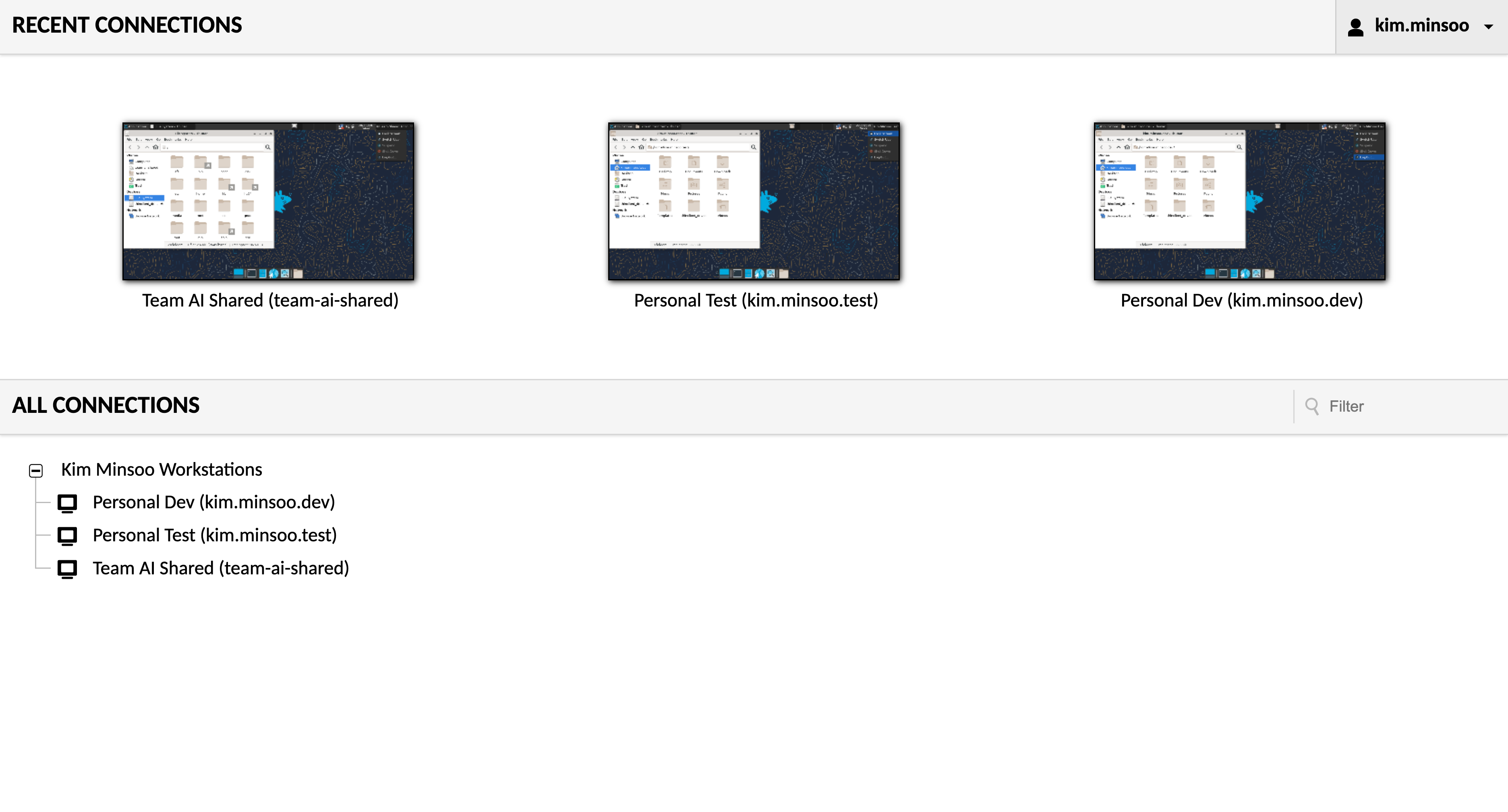
Three employees (Kim, Park, Lee) have enterprise AD accounts and access their individual remote development/test workstations through a unified portal. Each person has different numbers of workstation permissions, and an AI team shared workstation is used by all three.
Account Relationship Mapping
| AD Account | LDAP Account | Target VM | Connection Type |
|---|---|---|---|
| kim.minsoo | kim.minsoo.dev | linux-vm-1 (dev-workstation-01) | Personal Dev |
| kim.minsoo | kim.minsoo.test | linux-vm-3 (test-env-03) | Personal Test |
| kim.minsoo | team-ai-shared | linux-vm-2 (ai-gpu-server-02) | Team Shared |
| park.jiyeon | park.jiyeon.dev | linux-vm-1 (dev-workstation-01) | Personal Dev |
| park.jiyeon | team-ai-shared | linux-vm-2 (ai-gpu-server-02) | Team Shared |
| lee.seungho | lee.seungho.dev | linux-vm-3 (test-env-03) | Personal Dev |
| lee.seungho | team-ai-shared | linux-vm-2 (ai-gpu-server-02) | Team Shared |
Key Features:
- 1 AD Account → Multiple LDAP Accounts → Different workstation permissions
- LDAP-Driven: OpenLDAP
descriptionfield defines mappings, no manual Guacamole configuration required - Event-Driven: Keycloak SPI auto-triggers connection setup on user login; Guacamole DB starts empty
Full Architecture
flowchart TB
    Browser[Browser]

    subgraph Proxy Layer
        Nginx[Nginx<br/>Reverse Proxy + Logout JS Injection<br/>port 8888]
    end

    subgraph Remote Desktop Service
        Guacamole[Guacamole 1.6.0<br/>Web UI + OIDC extension<br/>PostgreSQL extension<br/>EXTENSION_PRIORITY=openid]
        Guacd[guacd<br/>RDP Protocol Proxy]
    end

    subgraph Auth and Event-Driven
        Keycloak[Keycloak 26.4<br/>OIDC SSO<br/>AD Federation<br/>guac-webhook SPI<br/>port 8080]
        SambaAD[Samba AD DC<br/>WZHLAB.TOP Domain Controller<br/>AD Authentication]
        Sync[guac-ldap-sync<br/>Event-Driven Sync Service<br/>Flask API<br/>port 5000]
    end

    subgraph Linux Workstations
        VM1[linux-vm-1<br/>dev-workstation-01<br/>XFCE + XRDP + pam_ldap]
        VM2[linux-vm-2<br/>ai-gpu-server-02<br/>XFCE + XRDP + pam_ldap]
        VM3[linux-vm-3<br/>test-env-03<br/>XFCE + XRDP + pam_ldap]
    end

    subgraph Data Layer
        OpenLDAP[OpenLDAP<br/>port 389<br/>description field<br/>vm=... ad=... label=...]
        PG[(PostgreSQL<br/>port 5432<br/>Keycloak DB +<br/>Guacamole DB<br/>Initially Empty)]
    end

    Browser -- "HTTP" --> Nginx
    Nginx -- "/guacamole/ proxy" --> Guacamole
    Nginx -- "XHR intercept DELETE /api/session<br/>redirect to Keycloak logout" --> Keycloak
    Guacamole -. "OIDC redirect login" .-> Keycloak
    Keycloak -- "Verify AD credentials via Samba AD LDAP" --> SambaAD
    Keycloak -- "LOGIN Event trigger<br/>POST /sync/username" --> Sync
    Sync -- "Query LDAP accounts<br/>where ad=username" --> OpenLDAP
    Sync -- "Write to Guacamole DB<br/>Connection Group + RDP Connections + Permissions" --> PG
    Guacamole -- "Read connection config" --> PG
    Keycloak -- "Read/Write Keycloak DB" --> PG
    Guacamole -- "Forward RDP requests" --> Guacd
    Guacd -- "RDP" --> VM1
    Guacd -- "RDP" --> VM2
    Guacd -- "RDP" --> VM3
    VM1 -- "nslcd pam_ldap" --> OpenLDAP
    VM2 -- "nslcd pam_ldap" --> OpenLDAP
    VM3 -- "nslcd pam_ldap" --> OpenLDAP

    style Browser fill:#E8F8F5,stroke:#1ABC9C
    style Nginx fill:#FDEDEC,stroke:#E74C3C
    style Guacamole fill:#D6EAF8,stroke:#3498DB
    style Guacd fill:#D6EAF8,stroke:#3498DB
    style Keycloak fill:#D5F5E3,stroke:#27AE60
    style SambaAD fill:#D5F5E3,stroke:#27AE60
    style Sync fill:#F5EEF8,stroke:#8E44AD
    style VM1 fill:#FCF3CF,stroke:#F1C40F
    style VM2 fill:#FCF3CF,stroke:#F1C40F
    style VM3 fill:#FCF3CF,stroke:#F1C40F
    style OpenLDAP fill:#FDEBD0,stroke:#E67E22
    style PG fill:#D5D8DC,stroke:#566573
Data Flow: User Login → Auto Connection Setup
1. Browser visits http://workplace.wzhlab.top:8888/guacamole/
2. Guacamole redirects to Keycloak OIDC login
3. User enters AD credentials (kim.minsoo / Password123!)
4. Keycloak verifies AD account (via Samba AD LDAP)
5. Login succeeds, LOGIN Event is triggered
6. guac-webhook SPI: POST http://guac-ldap-sync:5000/sync/kim.minsoo
7. guac-ldap-sync queries OpenLDAP for all accounts where ad=kim.minsoo
8. Creates connection group + RDP connections + permissions in Guacamole DB
9. User sees their workstation connection list in Guacamole
Container Inventory (11 total)
| Container | Image | Role | External Port |
|---|---|---|---|
| postgres | postgres:15 | Keycloak + Guacamole DB | 5432 |
| samba-ad | nowsci/samba-domain | AD Authentication | - |
| openldap | osixia/openldap:1.5.0 | LDAP Accounts + VM Mapping | - |
| keycloak | keycloak:26.4 + SPI JAR | OIDC + AD Federation + SPI | 8080 |
| guacd | guacamole/guacd:1.6.0 | RDP Protocol Proxy | - |
| guacamole | guacamole/guacamole:1.6.0 | Web UI + OIDC | - |
| nginx-proxy | nginx:alpine | Reverse Proxy + Logout JS | 8888 |
| linux-vm-1 | corp-linux-desktop | XFCE dev-workstation-01 | - |
| linux-vm-2 | corp-linux-desktop | XFCE ai-gpu-server-02 | - |
| linux-vm-3 | corp-linux-desktop | XFCE test-env-03 | - |
| guac-ldap-sync | guac-ldap-sync:latest | Event-Driven Sync Service | 5000 |
Table of Contents
- System Preparation
- Create Directory Structure
- Deploy PostgreSQL
- Deploy Samba AD DC
- Deploy OpenLDAP (with mapping format description)
- Build Linux Desktop Image
- Deploy Guacamole + Nginx
- Configure Keycloak + Deploy SPI
- Deploy guac-ldap-sync
- End-to-End Validation
- Demo Script
- Troubleshooting
- Restart Recovery
- Complete Account Information
1. System Preparation
Install Required Tools
The entire demo environment runs on Podman containers. All services (database, AD domain controller, LDAP, Keycloak, Guacamole, etc.) run in containers — no host-level service installation required.
The tools installed serve the following purposes:
podman/podman-compose: Container runtime, replaces Docker, no root daemon requiredvim/curl/wget/jq: General debugging and configuration utilitiesopenldap-clients: Providesldapadd/ldapsearchcommands for importing account data into and validating the OpenLDAP container
Why configure /etc/hosts: In the demo
environment, Keycloak issues OIDC tokens to the browser. The
token’s issuer field is
http://sso.wzhlab.top:8080/realms/corp, so the
browser must be able to resolve this domain. Similarly,
Guacamole’s redirect URI uses workplace.wzhlab.top.
Both domains point to the same server’s host IP, achieving a
“pseudo-multi-domain” effect without real DNS.
Finally, the corp-demo Podman network is created
so all containers can communicate by container name (e.g.,
openldap, keycloak,
postgres) rather than IP addresses — critical in
scenarios where IPs may change after container restarts.
dnf install -y podman podman-compose vim curl wget jq openldap-clients

MYIP=$(hostname -I | awk '{print $1}')
echo "${MYIP} sso.wzhlab.top" >> /etc/hosts
echo "${MYIP} workplace.wzhlab.top" >> /etc/hosts

podman network create corp-demo
2. Create Directory Structure
All configuration files, scripts, and SQL initialization
statements needed for the demo environment must be prepared on
the host in advance and mounted into containers via Podman
volumes. Centralizing everything under
~/corp-rhbk-demo/ makes backup and cleanup
easy.
Subdirectory purposes:
ldap-seed/: OpenLDAP initialization data files (LDIF format), containing OU structure and account datalinux-desktop/: Dockerfile and entrypoint script for the Linux desktop VMpostgres-init/: SQL initialization scripts auto-executed when PostgreSQL startsguacamole-init/: Schema SQL extracted from the official Guacamole image (initializes Guacamole DB table structure)nginx/: Nginx reverse proxy configuration (with Logout JS injection)keycloak-spi/: Java source and compiled JAR for the Keycloak custom SPIguac-sync/: Python source and Dockerfile for the guac-ldap-sync service
mkdir -p ~/corp-rhbk-demo/{ldap-seed,linux-desktop,postgres-init,guacamole-init,nginx,keycloak-spi,guac-sync}3. Deploy PostgreSQL
Why Use One PostgreSQL Instance for Two Databases
In this demo environment, both Keycloak and Guacamole each need a relational database. To simplify the environment, they share a single PostgreSQL instance but use independent databases and users for isolation:
keycloakdatabase: Stores all Keycloak persistent data — Realm config, users, clients, sessions, etc.guacamoledatabase: Stores Guacamole connection groups, RDP connection configs, user permissions, etc. Initially empty (all data is dynamically written by guac-ldap-sync on first user login)
Two-Phase Initialization Strategy
PostgreSQL initialization happens in two steps:
Step 1: Create databases and users
(auto-executed on first container start via
docker-entrypoint-initdb.d/). Creates an
admin superuser as the management account, and
creates dedicated users and databases for Keycloak and
Guacamole.
Step 2: Initialize Guacamole Schema
(executed manually after PostgreSQL starts). The official
Guacamole image includes an initdb.sh script that
generates the complete table creation SQL. The approach here:
run the script in a one-time container (--rm) to
generate the SQL file, then copy it into the postgres container
and execute it — avoiding the need to maintain a separate schema
version file.
cat > ~/corp-rhbk-demo/postgres-init/init.sql << 'EOF'
CREATE DATABASE keycloak;
CREATE USER keycloak WITH PASSWORD 'KeycloakDB2024!';
GRANT ALL PRIVILEGES ON DATABASE keycloak TO keycloak;
ALTER DATABASE keycloak OWNER TO keycloak;
CREATE DATABASE guacamole;
CREATE USER guacamole WITH PASSWORD 'GuacamoleDB2024!';
GRANT ALL PRIVILEGES ON DATABASE guacamole TO guacamole;
ALTER DATABASE guacamole OWNER TO guacamole;
EOF

podman run -d \
  --name postgres --network corp-demo \
  -e POSTGRES_USER=admin -e POSTGRES_PASSWORD='PgAdmin2024!' \
  -v ~/corp-rhbk-demo/postgres-init/init.sql:/docker-entrypoint-initdb.d/init.sql:Z \
  -v postgres-data:/var/lib/postgresql/data \
  -p 5432:5432 docker.io/postgres:15

sleep 20

# Initialize Guacamole Schema
podman run --rm docker.io/guacamole/guacamole:1.6.0 \
  /opt/guacamole/bin/initdb.sh --postgresql > ~/corp-rhbk-demo/guacamole-init/initdb.sql
podman cp ~/corp-rhbk-demo/guacamole-init/initdb.sql postgres:/tmp/initdb.sql
podman exec postgres psql -U guacamole -d guacamole -f /tmp/initdb.sql 2>&1 | tail -3
4. Deploy Samba AD DC
Samba AD’s Role in the Architecture
Samba AD (Active Directory Domain Controller) is the sole identity authentication data source in this demo. The three demo users (kim.minsoo, park.jiyeon, lee.seungho) have their credentials stored in Samba AD. Keycloak connects to Samba AD via the LDAP protocol to verify user login credentials.
This design simulates the real enterprise scenario of “employees logging into a unified portal with domain accounts.”
Key Operation Notes
① Container startup (wait 40 seconds): Samba AD’s domain initialization process is slow (Kerberos, DNS service initialization) — allow sufficient time before proceeding.
② Disable strong TLS authentication (⚠️ Critical
step, must be re-executed after restart): Keycloak uses
plain LDAP (not LDAPS) to connect to Samba AD. Samba 4 requires
clients to use LDAP signing by default
(ldap server require strong auth = yes), which
causes Keycloak connections to be rejected with
LDAP_STRONG_AUTH_REQUIRED. This restriction is
disabled by appending
ldap server require strong auth = no to the
[global] section of smb.conf.
Note: This configuration is written to the container’s runtime filesystem and will be lost on container restart. It must be re-executed after each restart (§13 Restart Recovery steps include this operation).
③ Bulk create AD users: Uses the
samba-tool CLI to create demo users. Loop variables
$1 $2 $3 $4 correspond to
username first-name last-name email, with all
passwords set to Password123!.
podman run -d \
  --name samba-ad --hostname ad.wzhlab.top --network corp-demo --privileged \
  -e DOMAIN=WZHLAB.TOP -e DOMAINPASS='CorpAD2024!' \
  -e DNSFORWARDER=8.8.8.8 -e HOSTIP=0.0.0.0 \
  -v samba-data:/var/lib/samba \
  docker.io/nowsci/samba-domain

sleep 40

# ⚠️ Required: Disable strong TLS (lost after container restart, must be re-executed)
podman exec samba-ad bash -c \
  "grep -q 'ldap server require strong auth' /etc/samba/smb.conf || \
   sed -i '/\[global\]/a\        ldap server require strong auth = no' /etc/samba/smb.conf"
podman exec samba-ad supervisorctl restart samba
sleep 10

# Create AD users
for user_info in "kim.minsoo Minsoo Kim kim.minsoo@wzhlab.top" \
                  "park.jiyeon Jiyeon Park park.jiyeon@wzhlab.top" \
                  "lee.seungho Seungho Lee lee.seungho@wzhlab.top"; do
  set -- $user_info
  podman exec samba-ad samba-tool user create $1 'Password123!' \
    --given-name=$2 --surname=$3 --mail-address=$4
done
5. Deploy OpenLDAP
OpenLDAP’s Dual Role
In this demo architecture, OpenLDAP serves two independent roles:
Role 1: Linux System Account Store (NSS/PAM)
Linux VM containers use nslcd +
pam_ldap to obtain POSIX account information (uid,
gid, home directory) from OpenLDAP, enabling users to log into
the Linux desktop with LDAP account credentials. This is a
standard LDAP centralized authentication approach.
Role 2: Guacamole Connection Configuration Center
(Sole Data Source) OpenLDAP’s description
field is designed as structured connection mapping data. The
guac-ldap-sync service parses this field to
dynamically generate Guacamole connection groups and RDP
connection configs. This design eliminates the need to maintain
a separate configuration database — all connection relationship
changes only require modifying LDAP entries.
LDAP Account Mapping Format
The OpenLDAP description field is the
sole data source for connection
relationships:
description: vm=<container-name> ad=<AD-user1>,<AD-user2> label=<connection-display-name>vm= Target Linux VM container name (matches the Podman container name, also the RDP connection target hostname)ad= List of AD accounts with access to this LDAP account (comma-separated; list multiple AD users when they share a workstation)label= Connection name displayed in the Guacamole UI (user-visible friendly name)
Account Design Notes
Each LDAP entry has two objectClass types:
inetOrgPerson: Provides person attributes like cn, snposixAccount: Provides POSIX attributes required by the Linux system (uidNumber, gidNumber, homeDirectory, etc.)
The uid field is the Linux login username and
also the RDP session username. After an RDP connection is
established, Guacamole uses this username to log into the
corresponding Linux VM. userPassword is the actual
RDP desktop login password, written by
guac-ldap-sync as rdp_password into
the Guacamole DB when creating RDP connections.
Create Data Files
cat > ~/corp-rhbk-demo/ldap-seed/01-structure.ldif << 'EOF'
dn: ou=People,dc=wzhlab,dc=top
objectClass: organizationalUnit
ou: People
EOF

cat > ~/corp-rhbk-demo/ldap-seed/02-users.ldif << 'EOF'
dn: uid=kim.minsoo.dev,ou=People,dc=wzhlab,dc=top
objectClass: inetOrgPerson
objectClass: posixAccount
objectClass: shadowAccount
uid: kim.minsoo.dev
cn: Kim Minsoo Dev
sn: Kim
uidNumber: 10001
gidNumber: 10001
homeDirectory: /home/kim.minsoo.dev
loginShell: /bin/bash
userPassword: DemoPass2024!
description: vm=linux-vm-1 ad=kim.minsoo label=Personal Dev

dn: uid=kim.minsoo.test,ou=People,dc=wzhlab,dc=top
objectClass: inetOrgPerson
objectClass: posixAccount
objectClass: shadowAccount
uid: kim.minsoo.test
cn: Kim Minsoo Test
sn: Kim
uidNumber: 10002
gidNumber: 10002
homeDirectory: /home/kim.minsoo.test
loginShell: /bin/bash
userPassword: DemoPass2024!
description: vm=linux-vm-3 ad=kim.minsoo label=Personal Test

dn: uid=team-ai-shared,ou=People,dc=wzhlab,dc=top
objectClass: inetOrgPerson
objectClass: posixAccount
objectClass: shadowAccount
uid: team-ai-shared
cn: AI Team Shared Account
sn: AI-Team
uidNumber: 10003
gidNumber: 10003
homeDirectory: /home/team-ai-shared
loginShell: /bin/bash
userPassword: DemoPass2024!
description: vm=linux-vm-2 ad=kim.minsoo,park.jiyeon,lee.seungho label=Team AI Shared

dn: uid=park.jiyeon.dev,ou=People,dc=wzhlab,dc=top
objectClass: inetOrgPerson
objectClass: posixAccount
objectClass: shadowAccount
uid: park.jiyeon.dev
cn: Park Jiyeon Dev
sn: Park
uidNumber: 10004
gidNumber: 10004
homeDirectory: /home/park.jiyeon.dev
loginShell: /bin/bash
userPassword: DemoPass2024!
description: vm=linux-vm-1 ad=park.jiyeon label=Personal Dev

dn: uid=lee.seungho.dev,ou=People,dc=wzhlab,dc=top
objectClass: inetOrgPerson
objectClass: posixAccount
objectClass: shadowAccount
uid: lee.seungho.dev
cn: Lee Seungho Dev
sn: Lee
uidNumber: 10005
gidNumber: 10005
homeDirectory: /home/lee.seungho.dev
loginShell: /bin/bash
userPassword: DemoPass2024!
description: vm=linux-vm-3 ad=lee.seungho label=Personal Dev
EOF
Start OpenLDAP and Import Data
⚠️ Do not use
LDAP_SEED_INTERNAL_LDIF_PATH— it causes a crash due to internal directory copy errors inside the container.
podman run -d \
  --name openldap --hostname ldap.wzhlab.top --network corp-demo \
  -e LDAP_ORGANISATION="Corp" -e LDAP_DOMAIN="wzhlab.top" \
  -e LDAP_ADMIN_PASSWORD="LdapAdmin2024!" -e LDAP_BASE_DN="dc=wzhlab,dc=top" \
  -v openldap-data:/var/lib/ldap -v openldap-config:/etc/ldap/slapd.d \
  docker.io/osixia/openldap:1.5.0

sleep 20

LDAP_IP=$(podman inspect openldap --format '{{range .NetworkSettings.Networks}}{{.IPAddress}}{{end}}')
ldapadd -x -H ldap://${LDAP_IP}:389 -D "cn=admin,dc=wzhlab,dc=top" -w "LdapAdmin2024!" \
  -f ~/corp-rhbk-demo/ldap-seed/01-structure.ldif
ldapadd -x -H ldap://${LDAP_IP}:389 -D "cn=admin,dc=wzhlab,dc=top" -w "LdapAdmin2024!" \
  -f ~/corp-rhbk-demo/ldap-seed/02-users.ldif
Verify
LDAP_IP=$(podman inspect openldap --format '{{range .NetworkSettings.Networks}}{{.IPAddress}}{{end}}')
ldapsearch -x -H ldap://${LDAP_IP}:389 -D "cn=admin,dc=wzhlab,dc=top" -w "LdapAdmin2024!" \
  -b "ou=People,dc=wzhlab,dc=top" "(objectClass=posixAccount)" uid description 2>&1 | \
  grep -E "uid:|description:"
# Should show 5 uids, each with a structured description (vm=... ad=... label=...)
6. Build Linux Desktop Image
Why Build a Custom Image
Linux VM containers must simultaneously satisfy three requirements:
- RDP Remote Desktop: Users connect via Guacamole Web UI using the RDP protocol
- LDAP Account Authentication: Log into the
Linux desktop with LDAP accounts (e.g.,
kim.minsoo.dev) - Graphical Desktop Environment: Run the XFCE lightweight desktop for actual user interaction
No existing public image satisfies all three requirements simultaneously, so we build our own based on Rocky Linux 9. The total image is approximately 1-2GB; build time is 5-15 minutes (depending on network and CPU).
6.1 Create entrypoint.sh
entrypoint.sh is the initialization script
executed when the container starts. It runs on every container
startup and handles 5 configuration phases:
Phase 1: Configure LDAP Client (nslcd)
Writes environment variables passed at container startup
(LDAP_SERVER, LDAP_BASE_DN, etc.) to
/etc/nslcd.conf, configuring the nslcd daemon to
connect to OpenLDAP. nslcd is the NSS LDAP client daemon,
responsible for providing LDAP query results to Linux system
calls (such as getent passwd).
Phase 2: Configure NSS (Name Service Switch)
Modifies /etc/nsswitch.conf to make Linux look up
local files first, then LDAP for
passwd/shadow/group
queries. This allows LDAP users to be recognized by the Linux
system.
Phase 3: Configure PAM Authentication Chain
Configures /etc/pam.d/system-auth to establish
authentication order: try local password authentication first,
then LDAP authentication (pam_ldap.so) on failure.
pam_mkhomedir.so ensures the home directory is
automatically created on first login.
Phase 4: Handle XFCE Desktop Compatibility Issues
- Disable
xfce-polkitPolicyKit agent: The container has nopolkitddaemon; PolicyKit popups cause desktop freezes or crashes - Generate a self-signed SSL certificate (required by xrdp)
- Configure XRDP session persistence parameters
(
KillDisconnected=false) to prevent sessions from being killed when RDP disconnects
Phase 5: Configure and Start XRDP
startwm.sh is the XRDP session startup script. XFCE
must be started via dbus-launch, otherwise the lack
of a D-Bus session causes XFCE to crash immediately (SIGTRAP).
Finally starts xrdp-sesman (session manager) and
xrdp (main process) to listen for RDP connections
(port 3389).
cat > ~/corp-rhbk-demo/linux-desktop/entrypoint.sh << 'ENTRYEOF'
#!/bin/bash
set -e
LDAP_SERVER=${LDAP_SERVER:-ldap://openldap:389}
LDAP_BASE_DN=${LDAP_BASE_DN:-dc=wzhlab,dc=top}
LDAP_BIND_DN=${LDAP_BIND_DN:-cn=admin,dc=wzhlab,dc=top}
LDAP_BIND_PW=${LDAP_BIND_PW:-LdapAdmin2024!}

cat > /etc/nslcd.conf << EOF
uid nslcd
gid ldap
uri ${LDAP_SERVER}
base ${LDAP_BASE_DN}
binddn ${LDAP_BIND_DN}
bindpw ${LDAP_BIND_PW}
ssl no
tls_cacertdir /etc/openldap/certs
EOF
chmod 600 /etc/nslcd.conf

cat > /etc/nsswitch.conf << EOF
passwd:     files ldap
shadow:     files ldap
group:      files ldap
hosts:      files dns
EOF

cat > /etc/pam.d/system-auth << 'PAMEOF'
#%PAM-1.0
auth        required      pam_env.so
auth        sufficient    pam_unix.so try_first_pass nullok
auth        sufficient    pam_ldap.so try_first_pass
auth        required      pam_deny.so
account     required      pam_unix.so
account     sufficient    pam_ldap.so
account     required      pam_permit.so
password    requisite     pam_pwquality.so try_first_pass local_users_only retry=3
password    sufficient    pam_unix.so try_first_pass use_authtok nullok sha512 shadow
password    sufficient    pam_ldap.so use_authtok
password    required      pam_deny.so
session     optional      pam_keyinit.so revoke
session     required      pam_limits.so
session     required      pam_unix.so
session     optional      pam_ldap.so
session     optional      pam_mkhomedir.so skel=/etc/skel umask=0077
PAMEOF
cp /etc/pam.d/system-auth /etc/pam.d/password-auth

# Disable XFCE PolicyKit Agent (container has no polkitd)
echo "Hidden=true" >> /etc/xdg/autostart/xfce-polkit.desktop 2>/dev/null || true
mkdir -p /etc/skel/.config/autostart
printf "[Desktop Entry]\nHidden=true\n" > /etc/skel/.config/autostart/xfce-polkit.desktop

/usr/sbin/nslcd 2>/dev/null || true
sleep 2
getent passwd kim.minsoo.dev >/dev/null 2>&1 && echo "LDAP OK" || echo "WARN: LDAP not ready"

[ ! -f /etc/xrdp/cert.pem ] && openssl req -x509 -newkey rsa:2048 \
  -keyout /etc/xrdp/key.pem -out /etc/xrdp/cert.pem \
  -days 365 -nodes -subj "/CN=$(hostname)" 2>/dev/null

if [ -f /etc/xrdp/sesman.ini ]; then
  grep -q 'KillDisconnected' /etc/xrdp/sesman.ini || echo 'KillDisconnected=false' >> /etc/xrdp/sesman.ini
  grep -q 'DisconnectedTimeLimit' /etc/xrdp/sesman.ini || echo 'DisconnectedTimeLimit=259200' >> /etc/xrdp/sesman.ini
  grep -q 'IdleTimeLimit' /etc/xrdp/sesman.ini || echo 'IdleTimeLimit=0' >> /etc/xrdp/sesman.ini
fi

sed -i 's|DefaultWindowManager=.*|DefaultWindowManager=/etc/xrdp/startwm.sh|' /etc/xrdp/sesman.ini 2>/dev/null || true

cat > /etc/xrdp/startwm.sh << 'WMEOF'
#!/bin/bash
unset DBUS_SESSION_BUS_ADDRESS
unset XDG_RUNTIME_DIR
if which dbus-launch > /dev/null 2>&1; then
  exec dbus-launch --exit-with-session startxfce4
else
  exec startxfce4
fi
WMEOF
chmod +x /etc/xrdp/startwm.sh

/usr/sbin/xrdp-sesman --nodaemon &
sleep 2
exec /usr/sbin/xrdp --nodaemon
ENTRYEOF
6.2 Create Dockerfile
The Dockerfile defines the image build process in 4 main layers:
- Base System Layer: Using
rockylinux:9as the base, install the EPEL repository (provides extra packages like xrdp) and perform a full system update - Desktop Environment Layer: Install the Xfce
desktop (
dnf groupinstall "Xfce") and XRDP service; also installnss-pam-ldapd(LDAP NSS/PAM client),oddjob-mkhomedir(auto home directory creation), and other dependencies - XRDP Tuning Layer: Adjust color depth from
default 32bpp to 24bpp (
max_bpp=24) to avoid color issues with some RDP clients - Startup Script Layer: Copy
entrypoint.shinto the image and set it as the container startup entry
Why use entrypoint.sh instead of configuring LDAP directly in the Dockerfile? The LDAP server address (e.g.,
ldap://openldap:389) is passed in as an environment variable at container startup — it’s not known at Dockerfile build time. Therefore, LDAP-related configuration must be written dynamically at runtime (entrypoint.sh), not hardcoded at build time.
cat > ~/corp-rhbk-demo/linux-desktop/Dockerfile << 'DOCKEREOF'
FROM docker.io/rockylinux:9
RUN dnf install -y epel-release && dnf update -y
RUN dnf groupinstall -y "Xfce" && \
    dnf install -y xrdp xorgxrdp tigervnc-server dbus-x11 \
    nss-pam-ldapd openldap-clients oddjob-mkhomedir sudo vim passwd openssl && \
    dnf clean all
RUN sed -i 's/^max_bpp=.*/max_bpp=24/' /etc/xrdp/xrdp.ini 2>/dev/null || true
COPY entrypoint.sh /entrypoint.sh
RUN chmod +x /entrypoint.sh
EXPOSE 3389
CMD ["/entrypoint.sh"]
DOCKEREOF
6.3 Build and Start
The image build requires downloading many packages (the Xfce
desktop is several hundred MB), so it’s recommended to run in
the background (nohup ... &). After building,
the three VM containers use the same image but
are given different identities via --name and
--hostname parameters, simulating three independent
workstations:
| Container Name | Hostname | Role |
|---|---|---|
| linux-vm-1 | dev-workstation-01 | Development Workstation |
| linux-vm-2 | ai-gpu-server-02 | AI GPU Server |
| linux-vm-3 | test-env-03 | Test Environment |
The --privileged flag is required because the
container needs to run nslcd (LDAP daemon) and
xrdp (RDP service), which need privileged
permissions to listen on ports and access system resources.
LDAP connection parameters are passed via environment
variables, dynamically written to configuration files by
entrypoint.sh at container startup. This way, all
VMs point to the same OpenLDAP service for centralized account
management.
cd ~/corp-rhbk-demo/linux-desktop
nohup podman build -t corp-linux-desktop:latest . > /tmp/docker-build.log 2>&1 &
echo "Build PID: $! - Monitor: tail -f /tmp/docker-build.log"
# Wait 5-15 minutes

# Start 3 VMs after build completes
for name in linux-vm-1 linux-vm-2 linux-vm-3; do
  hostname_map=("dev-workstation-01" "ai-gpu-server-02" "test-env-03")
  idx=0; [[ $name == "linux-vm-2" ]] && idx=1; [[ $name == "linux-vm-3" ]] && idx=2
  podman run -d \
    --name $name --hostname ${hostname_map[$idx]} --network corp-demo --privileged \
    -e LDAP_SERVER=ldap://openldap:389 \
    -e LDAP_BASE_DN=dc=wzhlab,dc=top \
    -e LDAP_BIND_DN=cn=admin,dc=wzhlab,dc=top \
    -e LDAP_BIND_PW=LdapAdmin2024! \
    corp-linux-desktop:latest
done
sleep 25
7. Deploy Guacamole + Nginx
Guacamole’s Role in the Architecture
Guacamole is the user-facing entry point for the entire demo. It converts browser access into RDP protocol, enabling remote desktop access through a web page. Key design decisions for Guacamole in this demo:
- OIDC-First Authentication: Guacamole does not perform local password authentication — it fully delegates to Keycloak OIDC. When a user accesses Guacamole, the page immediately redirects to the Keycloak login page
- DB Starts Empty: Guacamole’s PostgreSQL database has no connection configurations at deploy time. Connection data is dynamically written by guac-ldap-sync when users log in
- Auto Account Creation:
POSTGRESQL_AUTO_CREATE_ACCOUNTS=truemakes Guacamole automatically create a corresponding user record in the DB when a user first logs in via OIDC
7.1 Start guacd
guacd is Guacamole’s backend daemon, responsible for actual RDP protocol handling. The Guacamole web application does not process RDP directly — it forwards connection requests to guacd, which establishes RDP connections to the target Linux VMs and streams desktop images back to the browser.
guacd does not need external port exposure (it communicates
internally within the corp-demo network), and
requires no persistent storage — its configuration is
minimal.
podman run -d --name guacd --network corp-demo docker.io/guacamole/guacd:1.6.07.2 Start Guacamole
Key Environment Variables Explained:
| Environment Variable | Purpose | Notes |
|---|---|---|
OPENID_ENABLED=true |
Enable built-in OIDC extension | Built into 1.6.0, no manual JAR download needed |
EXTENSION_PRIORITY=openid |
OIDC extension handles auth before PostgreSQL extension | Without this, local login page shows instead of redirecting to Keycloak |
POSTGRESQL_AUTO_CREATE_ACCOUNTS=true |
Auto-create user records after OIDC login | Must be enabled, otherwise user has no DB permissions after login |
OPENID_AUTHORIZATION_ENDPOINT |
Use public domain (sso.wzhlab.top:8080) |
Used for browser redirects, must be resolvable by the browser |
OPENID_JWKS_ENDPOINT |
Use internal container name
(keycloak:8080) |
Used server-side to verify token signatures, goes through internal network |
OPENID_USERNAME_CLAIM_TYPE=preferred_username |
Extract username from token’s
preferred_username field |
Corresponds to AD’s sAMAccountName, i.e.,
kim.minsoo |
Key Configurations: -
OPENID_ENABLED=true— No manual JAR download needed (built into 1.6.0) -EXTENSION_PRIORITY=openid— OIDC takes priority over PostgreSQL for authentication -POSTGRESQL_AUTO_CREATE_ACCOUNTS=true— Auto-create account on first login - No external port exposed; proxied through Nginx
podman run -d \
  --name guacamole --hostname workplace.wzhlab.top --network corp-demo \
  -e GUACD_HOSTNAME=guacd -e GUACD_PORT=4822 \
  -e POSTGRESQL_HOSTNAME=postgres -e POSTGRESQL_PORT=5432 \
  -e POSTGRESQL_DATABASE=guacamole -e POSTGRESQL_USER=guacamole \
  -e POSTGRESQL_PASSWORD='GuacamoleDB2024!' \
  -e POSTGRESQL_AUTO_CREATE_ACCOUNTS=true \
  -e OPENID_ENABLED=true \
  -e OPENID_AUTHORIZATION_ENDPOINT=http://sso.wzhlab.top:8080/realms/corp/protocol/openid-connect/auth \
  -e OPENID_JWKS_ENDPOINT=http://keycloak:8080/realms/corp/protocol/openid-connect/certs \
  -e OPENID_ISSUER=http://sso.wzhlab.top:8080/realms/corp \
  -e OPENID_CLIENT_ID=guacamole \
  -e OPENID_REDIRECT_URI=http://workplace.wzhlab.top:8888/guacamole/ \
  -e "OPENID_SCOPE=openid email profile" \
  -e OPENID_USERNAME_CLAIM_TYPE=preferred_username \
  -e EXTENSION_PRIORITY=openid \
  docker.io/guacamole/guacamole:1.6.0
sleep 20
7.3 Create Nginx Configuration (with Logout JS)
Why inject JS? Guacamole 1.6.0 does not support RP-Initiated Logout (GUACAMOLE-758/519). Nginx
sub_filterinjects an XHR intercept JS: when Guacamole sendsDELETE /api/session, it synchronously sends DELETE (to clean the local session) + after 200ms redirects to the Keycloak logout endpoint to destroy the SSO session.⚠️ Guacamole 1.6.0 logout API changed from
DELETE /api/tokens/{token}toDELETE /api/session
# Use Python to write the file (avoids shell quote nesting issues)
cat << 'PYEOF' | base64 | ssh root@<server-ip> 'base64 -d > /tmp/mk_nginx.py && python3 /tmp/mk_nginx.py'
import os
js = (
    "(function(){var _o=XMLHttpRequest.prototype.open,_s=XMLHttpRequest.prototype.send;"
    "XMLHttpRequest.prototype.open=function(m,u){this._lg=(m==='DELETE'&&u&&u.indexOf('api/session')!==-1);return _o.apply(this,arguments);};"
    "XMLHttpRequest.prototype.send=function(){if(this._lg){"
    "var u='http://sso.wzhlab.top:8080/realms/corp/protocol/openid-connect/logout?client_id=guacamole&post_logout_redirect_uri='+encodeURIComponent('http://workplace.wzhlab.top:8888/guacamole/');"
    "_s.apply(this,arguments);setTimeout(function(){window.location.replace(u);},200);return;}"
    "return _s.apply(this,arguments);};}());"
)
sf = "<head><script>" + js + "</script>"
content = r"""events { worker_connections 1024; }
http { server { listen 80; server_name _;
  sub_filter '<head>' '""" + sf.replace("'", "\\'") + r"""';
  sub_filter_once on; sub_filter_types text/html;
  location /guacamole/ {
    proxy_pass http://guacamole:8080/guacamole/;
    proxy_http_version 1.1;
    proxy_set_header Upgrade $http_upgrade;
    proxy_set_header Connection "upgrade";
    proxy_set_header Host $host;
    proxy_set_header X-Real-IP $remote_addr;
    proxy_set_header X-Forwarded-For $proxy_add_x_forwarded_for;
    proxy_set_header X-Forwarded-Proto $scheme;
    proxy_set_header Accept-Encoding "";
    proxy_read_timeout 3600; proxy_send_timeout 3600;
    proxy_buffering off;
  }
  location = / { return 301 /guacamole/; }
} }
"""
os.makedirs('/root/corp-rhbk-demo/nginx', exist_ok=True)
with open('/root/corp-rhbk-demo/nginx/nginx.conf', 'w') as f: f.write(content)
print('nginx.conf created')
PYEOF

podman run -d \
  --name nginx-proxy --network corp-demo \
  -v ~/corp-rhbk-demo/nginx/nginx.conf:/etc/nginx/nginx.conf:ro,Z \
  -p 8888:80 docker.io/nginx:alpine
8. Configure Keycloak + Deploy SPI
Keycloak’s Central Role in the Architecture
Keycloak is the authentication and event-driven hub of the entire demo, serving three critical functions:
- OIDC Identity Provider: Provides OIDC SSO service to Guacamole; users log in through the Keycloak page
- AD Federation: Bridges the enterprise AD (Samba AD), delegating AD credential verification to Samba AD
- Event Trigger (via SPI): After successful user login, triggers the custom SPI to send a webhook to guac-ldap-sync, driving automatic connection configuration creation
8.1 Build the SPI JAR
Keycloak SPI (Service Provider Interface) is Keycloak’s
plugin mechanism. This demo implements an EventListener
SPI that listens for Keycloak’s LOGIN
event and automatically sends an HTTP POST request to
guac-ldap-sync with the logged-in username when a user
successfully logs in.
Build method: Use a Maven container
(docker.io/maven:3.9-eclipse-temurin-21) to compile
the Java source in the host directory, producing a JAR file of
approximately 5-6KB (contains only SPI code, no bundled
dependencies). The SPI JAR is mounted into the Keycloak
container’s /opt/keycloak/providers/ directory via
Podman volume. Keycloak auto-discovers and loads it on startup
without any additional configuration.
Keycloak SPI source code is in the repo’s
files/keycloak-guac-webhook/directory.
scp -r files/keycloak-guac-webhook/ root@<server-ip>:~/corp-rhbk-demo/keycloak-spi/

mkdir -p ~/.m2
podman run --rm \
  -v ~/corp-rhbk-demo/keycloak-spi:/project:Z \
  -v ~/.m2:/root/.m2:Z \
  docker.io/maven:3.9-eclipse-temurin-21 \
  mvn -f /project/pom.xml package -q -DskipTests 2>&1

cp ~/corp-rhbk-demo/keycloak-spi/target/keycloak-guac-webhook.jar \
   ~/corp-rhbk-demo/keycloak-spi/keycloak-guac-webhook.jar
ls -lh ~/corp-rhbk-demo/keycloak-spi/keycloak-guac-webhook.jar  # Should be ~5-6K
8.2 Start Keycloak (with SPI Volume Mount Persistence)
Key Startup Parameter Notes:
KC_HOSTNAME_STRICT=false+KC_HTTP_ENABLED=true: Allow HTTP access; no TLS configured in the demo environmentKC_PROXY_HEADERS=xforwarded: Correctly read client IP when Keycloak is behind Nginx (in this demo, Nginx directly proxies Keycloak’s port; actual Guacamole access is via 8888, Keycloak via 8080 direct connection)KC_WEBHOOK_URL=http://guac-ldap-sync:5000: The SPI reads this environment variable to know where to send the webhook. This is the sole coupling point between the SPI and guac-ldap-sync-v .../keycloak-guac-webhook.jar:/opt/keycloak/providers/...: Keycloak’sproviders/directory is the standard path for the SPI discovery mechanism. Once a JAR is placed here, it auto-loads on next startup without any additional configurationstart-dev: Starts in development mode (disables production requirements like TLS, hostname checks, etc.), suitable for demo environments
Wait approximately 60 seconds after startup (Keycloak database initialization + SPI loading is slow), then check the logs to confirm the SPI loaded successfully.
podman run -d \
  --name keycloak --hostname sso.wzhlab.top --network corp-demo \
  -e KEYCLOAK_ADMIN=admin \
  -e KEYCLOAK_ADMIN_PASSWORD='KeycloakAdmin2024!' \
  -e KC_DB=postgres \
  -e KC_DB_URL=jdbc:postgresql://postgres:5432/keycloak \
  -e KC_DB_USERNAME=keycloak -e KC_DB_PASSWORD='KeycloakDB2024!' \
  -e KC_HOSTNAME_STRICT=false -e KC_HTTP_ENABLED=true \
  -e KC_PROXY_HEADERS=xforwarded \
  -e KC_WEBHOOK_URL=http://guac-ldap-sync:5000 \
  -v ~/corp-rhbk-demo/keycloak-spi/keycloak-guac-webhook.jar:/opt/keycloak/providers/keycloak-guac-webhook.jar:Z,ro \
  -p 8080:8080 \
  quay.io/keycloak/keycloak:26.4 start-dev

sleep 60

# Verify SPI is loaded
podman logs keycloak 2>&1 | grep "guac-webhook"
# Should see: [guac-webhook] Initialized. Webhook base URL: http://guac-ldap-sync:5000
8.3 Configure Keycloak (corp Realm + AD + OIDC Client + SPI)
This step uses kcadm.sh (Keycloak Admin CLI) to
complete all configuration without entering the Web UI.
Configuration is divided into 4 sub-steps:
① Obtain Admin Token: Call
config credentials to cache admin credentials
locally (~/.keycloak/kcadm.config); subsequent
commands don’t need to re-enter the password.
② Create corp Realm: All demo resources
(users, clients, Federation) live in the independent
corp Realm, completely isolated from the
master Realm. Email login and self-registration are
disabled, consistent with an enterprise AD login scenario.
③ Configure AD Federation: Register Samba AD
as a Keycloak LDAP User Storage Provider. Key parameters: -
config.vendor=["ad"]: Tells Keycloak to use
AD-specific LDAP attribute mapping -
config.usernameLDAPAttribute=["sAMAccountName"]: AD
login name field (corresponds to kim.minsoo) -
config.uuidLDAPAttribute=["objectGUID"]: AD object
unique identifier, used for account sync deduplication -
config.editMode=["READ_ONLY"]: Read-only mode;
Keycloak does not modify user data in AD - After creation,
immediately execute triggerFullSync to sync AD
users to Keycloak’s local DB
④ Create Guacamole OIDC Client: -
publicClient=true: Public client, no client secret
required (suitable for web apps) -
implicitFlowEnabled=true: ⚠️ Must be enabled;
Guacamole 1.6.0’s OIDC implementation uses Implicit Flow - Set
post_logout_redirect_uris separately via Python
script (kcadm.sh does not directly support this
field)
⑤ Register guac-webhook Event Listener: Register the SPI in the corp Realm’s event listener list. This configuration is persisted to PostgreSQL and takes effect automatically after restarts.
podman exec keycloak /opt/keycloak/bin/kcadm.sh config credentials \
  --server http://localhost:8080 --realm master \
  --user admin --password 'KeycloakAdmin2024!'

# Create corp Realm
podman exec keycloak /opt/keycloak/bin/kcadm.sh create realms \
  -s realm=corp -s enabled=true -s displayName="Corp SSO" \
  -s loginWithEmailAllowed=false -s registrationAllowed=false

# AD Federation (use container DNS name; no issue if IP changes after restart)
COMP_ID=$(podman exec keycloak /opt/keycloak/bin/kcadm.sh create components \
  -r corp \
  -s name="Corp Active Directory" \
  -s providerId=ldap \
  -s providerType=org.keycloak.storage.UserStorageProvider \
  -s 'config.vendor=["ad"]' \
  -s 'config.usernameLDAPAttribute=["sAMAccountName"]' \
  -s 'config.rdnLDAPAttribute=["cn"]' \
  -s 'config.uuidLDAPAttribute=["objectGUID"]' \
  -s 'config.userObjectClasses=["person, organizationalPerson, user"]' \
  -s 'config.connectionUrl=["ldap://samba-ad:389"]' \
  -s 'config.usersDn=["CN=Users,DC=WZHLAB,DC=TOP"]' \
  -s 'config.authType=["simple"]' \
  -s 'config.bindDn=["CN=Administrator,CN=Users,DC=WZHLAB,DC=TOP"]' \
  -s 'config.bindCredential=["CorpAD2024!"]' \
  -s 'config.searchScope=["2"]' \
  -s 'config.editMode=["READ_ONLY"]' \
  -s 'config.importEnabled=["true"]' \
  -s 'config.connectionPooling=["true"]' \
  -i 2>&1)
echo "Federation ID: $COMP_ID"
podman exec keycloak /opt/keycloak/bin/kcadm.sh create \
  "user-storage/${COMP_ID}/sync?action=triggerFullSync" -r corp 2>&1

# Guacamole OIDC Client (⚠️ implicitFlowEnabled must be true)
podman exec keycloak /opt/keycloak/bin/kcadm.sh create clients -r corp \
  -s clientId=guacamole -s name="Virtual Workplace Demo" \
  -s enabled=true -s publicClient=true \
  -s 'standardFlowEnabled=true' -s 'implicitFlowEnabled=true' \
  -s 'rootUrl=http://workplace.wzhlab.top:8888/guacamole/' \
  -s 'baseUrl=http://workplace.wzhlab.top:8888/guacamole/' \
  -s 'redirectUris=["http://workplace.wzhlab.top:8888/*"]' \
  -s 'webOrigins=["*"]'

# Configure post_logout_redirect_uris
python3 -c "
import urllib.request, urllib.parse, json
td = urllib.parse.urlencode({'client_id':'admin-cli','username':'admin',
  'password':'KeycloakAdmin2024!','grant_type':'password'}).encode()
req = urllib.request.Request('http://localhost:8080/realms/master/protocol/openid-connect/token',data=td,method='POST')
with urllib.request.urlopen(req) as r: token = json.loads(r.read())['access_token']
req = urllib.request.Request('http://localhost:8080/admin/realms/corp/clients?clientId=guacamole',
  headers={'Authorization':f'Bearer {token}'})
with urllib.request.urlopen(req) as r: client = json.loads(r.read())[0]
client['attributes']['post.logout.redirect.uris'] = 'http://workplace.wzhlab.top:8888/*'
data = json.dumps(client).encode()
req = urllib.request.Request(f'http://localhost:8080/admin/realms/corp/clients/{client[\"id\"]}',
  data=data, method='PUT', headers={'Authorization':f'Bearer {token}','Content-Type':'application/json'})
with urllib.request.urlopen(req) as r: print('Update:', r.status)
"

# Enable guac-webhook Event Listener (one-time; persisted in PostgreSQL)
podman exec keycloak /opt/keycloak/bin/kcadm.sh update realms/corp \
  -r corp -s 'eventsListeners=["jboss-logging","guac-webhook"]'
9. Deploy guac-ldap-sync
This is the core of the entire solution: Keycloak SPI triggers → Query OpenLDAP → Write to Guacamole DB
How the Sync Service Works
guac-ldap-sync is a lightweight HTTP API service
implemented in Python/Flask, exposing a
/sync/<username> endpoint. When called, it
performs three operations:
- Query OpenLDAP: Search under
ou=People,dc=wzhlab,dc=topfor all entries where thedescriptionfield containsad=<username>(supports multi-value, e.g.,ad=kim.minsoo,park.jiyeon) - Parse Mapping Relationships: Extract
vm(target container name),label(display name),uid(Linux username), etc. from thedescriptionfield - Write to Guacamole DB: Execute upsert
operations in PostgreSQL, idempotently creating/updating:
- Connection groups
(
guacamole_connection_group): Named<AD-username> Workstations - RDP connections
(
guacamole_connection): One connection per LDAP account, targeting the VM container name - User permissions
(
guacamole_connection_permission): Grant READ permission to that AD user
- Connection groups
(
Environment Variable Notes:
LDAP_URL/BIND_DN/BIND_PW/BASE: Configuration to connect to OpenLDAPPG_HOST/DB/USER/PASS: Configuration to connect to Guacamole PostgreSQLRDP_PASSWORD: RDP connection password written to Guacamole DB (the LDAP account’suserPassword)GUAC_BACKEND: Internal address of the Guacamole web service (used for certain API operations, such as cleaning up old connections)
Source Code
Source code is in
files/keycloak-guac-webhook/guac-sync/, see the README.md in that directory.
scp -r files/keycloak-guac-webhook/guac-sync/ root@<server-ip>:~/corp-rhbk-demo/

cd ~/corp-rhbk-demo/guac-sync
cat > requirements.txt << 'EOF'
flask>=3.0
ldap3>=2.9
psycopg2-binary>=2.9
requests>=2.31
EOF
podman build -t guac-ldap-sync:latest .

podman run -d \
  --name guac-ldap-sync --network corp-demo \
  -e LDAP_URL=ldap://openldap:389 \
  -e LDAP_BIND_DN=cn=admin,dc=wzhlab,dc=top \
  -e LDAP_BIND_PW=LdapAdmin2024! \
  -e LDAP_BASE=ou=People,dc=wzhlab,dc=top \
  -e PG_HOST=postgres -e PG_DB=guacamole \
  -e PG_USER=guacamole -e PG_PASS=GuacamoleDB2024! \
  -e RDP_PASSWORD=DemoPass2024! \
  -e GUAC_BACKEND=http://guacamole:8080 \
  -p 5000:5000 guac-ldap-sync:latest

sleep 15
curl -s http://localhost:5000/health
10. End-to-End Validation
After all services are deployed, run the following validation script to confirm the overall chain is working. Each check corresponds to a key component or integration point:
| Validation Item | What to Check | Expected Result |
|---|---|---|
| Container Status | All 11 containers Up | No Exited status |
| AD Authentication | Obtain token via Resource Owner Password method | Returns token_type: Bearer; otherwise indicates
AD connection or Realm config error |
| SPI Verification | guac-webhook initialization in Keycloak logs | Shows Initialized. Webhook base URL |
| Guacamole HTTP | Nginx proxy returns HTTP 200 | Returns HTTP 200 |
| Logout JS | Nginx-injected JS visible in HTML | Outputs 1 (matched
api/session) |
| Manual Sync Trigger | Call sync API directly to verify LDAP → DB chain | Returns JSON with created connection information |
| hosts Configuration | Prompt for hosts entries needed on demo laptop | Add the displayed IP and domains to demo laptop’s /etc/hosts |
echo "=== Container Status (should be 11) ==="
podman ps --format "table {{.Names}}\t{{.Status}}" | sort

echo "=== AD Authentication Test ==="
for u in kim.minsoo park.jiyeon lee.seungho; do
  R=$(curl -s -X POST http://localhost:8080/realms/corp/protocol/openid-connect/token \
    -d "client_id=guacamole&grant_type=password&username=$u&password=Password123!" | \
    python3 -c "import sys,json; d=json.load(sys.stdin); print(d.get('token_type',d.get('error')))")
  echo "  $u: $R"
done

echo "=== SPI Verification ==="
podman logs keycloak 2>&1 | grep "guac-webhook" | tail -3

echo "=== Guacamole HTTP ==="
curl -s -o /dev/null -w "HTTP %{http_code}" http://localhost:8888/guacamole/

echo "=== Logout JS Injection ==="
curl -s http://localhost:8888/guacamole/ | grep -c "api/session"
# Should output 1

echo "=== Manual Sync Trigger (test) ==="
curl -s -X POST http://localhost:5000/sync/kim.minsoo | python3 -m json.tool

echo "=== Demo Laptop hosts ==="
PUB_IP=$(curl -s http://169.254.169.254/latest/meta-data/public-ipv4 2>/dev/null || echo "35.93.145.230")
echo "Add to laptop /etc/hosts:"
echo "  ${PUB_IP}  sso.wzhlab.top  workplace.wzhlab.top"
11. Demo Script
11.1 Standard Demo Flow
- Visit
http://workplace.wzhlab.top:8888/guacamole/→ Redirects to Keycloak login - Enter
kim.minsoo/Password123!- Keycloak SPI triggers
POST /sync/kim.minsoo - guac-ldap-sync reads mappings from OpenLDAP, creates Guacamole connections
- Keycloak SPI triggers
- Return to Guacamole → See “Kim Minsoo Workstations” + 3 connections
- Click “Personal Dev” → XFCE desktop
- Click Logout → Keycloak confirms → Returns to login page
11.2 Demonstrate Auto-Provisioning of New Workstations
This is the highlight of the entire demo, showcasing the system’s dynamic extensibility: without restarting any service or modifying any configuration file, simply by adding a new account in OpenLDAP, the user will automatically see the new workstation connection on their next login.
Demo Key Points:
- Add a
kim.minsoo.prodaccount in LDAP, mapped tolinux-vm-2(AI GPU Server) - Immediately call the sync API manually (in an actual demo, kim.minsoo can also re-login to Guacamole to trigger it)
- Query PostgreSQL directly to prove the new connection has been written to the Guacamole DB
- Return to Guacamole and refresh the page — the new “Prod GPU Server” connection appears in the list
This demo illustrates the system’s Configuration as LDAP Data design philosophy: connection configurations are not static but entirely driven by LDAP data. Operations teams only need to manage LDAP to control all users’ workstation permissions, achieving zero-touch configuration management.
# Add a new LDAP account
LDAP_IP=$(podman inspect openldap --format '{{range .NetworkSettings.Networks}}{{.IPAddress}}{{end}}')
ldapadd -x -H ldap://${LDAP_IP}:389 -D "cn=admin,dc=wzhlab,dc=top" -w "LdapAdmin2024!" << 'EOF'
dn: uid=kim.minsoo.prod,ou=People,dc=wzhlab,dc=top
objectClass: inetOrgPerson
objectClass: posixAccount
objectClass: shadowAccount
uid: kim.minsoo.prod
cn: Kim Minsoo Prod
sn: Kim
uidNumber: 10006
gidNumber: 10006
homeDirectory: /home/kim.minsoo.prod
loginShell: /bin/bash
userPassword: DemoPass2024!
description: vm=linux-vm-2 ad=kim.minsoo label=Prod GPU Server
EOF

# Trigger sync (or let user re-login to trigger SPI)
curl -X POST http://localhost:5000/sync/kim.minsoo

# Verify new connection
podman exec postgres psql -U guacamole -d guacamole -t -c \
  "SELECT connection_name FROM guacamole_connection WHERE connection_name LIKE '%Prod%';"
12. Troubleshooting
| Symptom | Root Cause | Fix |
|---|---|---|
| Keycloak cannot connect to Samba AD | smb.conf TLS disable config lost after restart | podman exec samba-ad bash -c "sed -i '/\[global\]/a\ ldap server require strong auth = no' /etc/samba/smb.conf" && podman exec samba-ad supervisorctl restart samba |
| Guacamole infinite redirect | Implicit Flow not enabled | kcadm.sh update clients/<UUID> -r corp -s implicitFlowEnabled=true |
| Empty connection list after login | SPI not triggered or guac-ldap-sync error | Check
podman logs keycloak \| grep guac-webhook; manually
run
curl -X POST localhost:5000/sync/kim.minsoo |
| RDP shows “User does not exist” | pam_ldap not configured or nslcd not running | podman exec linux-vm-1 getent passwd kim.minsoo.dev |
| XFCE desktop disconnects immediately SIGTRAP | startwm.sh missing dbus-launch | Confirm entrypoint.sh’s startwm.sh includes dbus-launch |
| XFCE PolicyKit popup | Container has no polkitd | podman exec linux-vm-1 bash -c "echo Hidden=true >> /etc/xdg/autostart/xfce-polkit.desktop" |
| Immediately re-authenticates after logout | Keycloak SSO session not destroyed | Confirm Nginx JS is intercepting api/session:
curl -s localhost:8888/guacamole/ \| grep "api/session" |
| AD users marked as disabled | Keycloak could not connect to AD on startup | After fixing Samba AD:
kcadm.sh create user-storage/<ID>/sync?action=triggerFullSync -r corp |
| Guacamole shows local login page | OpenID priority not configured correctly | Confirm container has
-e EXTENSION_PRIORITY=openid |
13. Restart Recovery
Why a Dedicated Restart Recovery Procedure
Services in the demo environment have a strict startup dependency order, and some configurations are not persistent (Samba AD’s smb.conf modifications). Starting in the wrong order after a restart will cause a series of cascading failures.
Dependency Chain:
PostgreSQL (data layer)
  ↓
Samba AD + OpenLDAP (identity authentication layer)
  ↓
Keycloak (OIDC + AD Federation)
  ↓
guacd + Linux VMs (desktop service layer)
  ↓
Guacamole (Web UI)
  ↓
Nginx (proxy layer)
Additional Operations Required After Every Restart:
| Step | Reason |
|---|---|
| Fix Samba AD smb.conf | Container filesystem is not persistent; TLS restriction restores after each restart |
| Keycloak AD Sync | If Keycloak cannot connect to AD on startup, it marks AD
users as disabled, causing login failures |
| Recreate guac-ldap-sync | This container has no persistent state, direct restart works; but since Podman doesn’t always handle state correctly, stop/rm/run is recommended |
Validation Notes: The Step 5 validation
script verifies AD authentication via token; returning
Bearer indicates success, FAIL
indicates an AD connection or Keycloak configuration issue.
# Step 1: Restart in dependency order
podman restart postgres; sleep 10
podman restart samba-ad openldap; sleep 15
podman restart keycloak; sleep 60
podman restart guacd linux-vm-1 linux-vm-2 linux-vm-3; sleep 15
podman restart guacamole; sleep 10
podman restart nginx-proxy; sleep 5

# Step 2: Fix Samba AD (⚠️ Required after every restart; smb.conf is not persistent)
podman exec samba-ad bash -c \
  "grep -q 'ldap server require strong auth' /etc/samba/smb.conf || \
   sed -i '/\[global\]/a\        ldap server require strong auth = no' /etc/samba/smb.conf"
podman exec samba-ad supervisorctl restart samba
sleep

# `

# Step 3: Keycloak AD Sync (fix users that may have been marked as disabled)
podman exec keycloak /opt/keycloak/bin/kcadm.sh config credentials \
  --server http://localhost:8080 --realm master --user admin --password 'KeycloakAdmin2024!'
COMP_ID=$(podman exec keycloak /opt/keycloak/bin/kcadm.sh get components \
  -r corp -q type=org.keycloak.storage.UserStorageProvider \
  --fields id 2>&1 | python3 -c "import sys,json; print(json.load(sys.stdin)[0]['id'])")
podman exec keycloak /opt/keycloak/bin/kcadm.sh create \
  "user-storage/${COMP_ID}/sync?action=triggerFullSync" -r corp

# Step 4: Restart guac-ldap-sync
podman stop guac-ldap-sync 2>/dev/null; podman rm guac-ldap-sync 2>/dev/null || true
podman run -d \
  --name guac-ldap-sync --network corp-demo \
  -e LDAP_URL=ldap://openldap:389 \
  -e LDAP_BIND_DN=cn=admin,dc=wzhlab,dc=top -e LDAP_BIND_PW=LdapAdmin2024! \
  -e LDAP_BASE=ou=People,dc=wzhlab,dc=top \
  -e PG_HOST=postgres -e PG_DB=guacamole \
  -e PG_USER=guacamole -e PG_PASS=GuacamoleDB2024! \
  -e RDP_PASSWORD=DemoPass2024! -e GUAC_BACKEND=http://guacamole:8080 \
  -p 5000:5000 guac-ldap-sync:latest

# Step 5: Validate
sleep 15
for u in kim.minsoo park.jiyeon lee.seungho; do
  R=$(curl -s -X POST http://localhost:8080/realms/corp/protocol/openid-connect/token \
    -d "client_id=guacamole&grant_type=password&username=$u&password=Password123!" | \
    python3 -c "import sys,json; d=json.load(sys.stdin); print(d.get('token_type','FAIL'))" 2>/dev/null)
  echo "$u: $R"
done
PUB_IP=$(curl -s http://169.254.169.254/latest/meta-data/public-ipv4 2>/dev/null || echo "unknown")
echo "Public IP: ${PUB_IP} | Demo Entry: http://workplace.wzhlab.top:8888/guacamole/"
14. Complete Account Information
Service Management Accounts
| Service | Username | Password |
|---|---|---|
| Keycloak Admin | admin | KeycloakAdmin2024! |
| PostgreSQL | admin | PgAdmin2024! |
| Samba AD | Administrator | CorpAD2024! |
| OpenLDAP | cn=admin,dc=wzhlab,dc=top | LdapAdmin2024! |
Demo Users (AD Accounts)
| AD User | Password | Connections | Connection Group |
|---|---|---|---|
| kim.minsoo | Password123! | 3 | Kim Minsoo Workstations |
| park.jiyeon | Password123! | 2 | Park Jiyeon Workstations |
| lee.seungho | Password123! | 2 | Lee Seungho Workstations |
LDAP Accounts (Linux Desktop Login)
| LDAP Account | Password | VM | Purpose |
|---|---|---|---|
| kim.minsoo.dev | DemoPass2024! | linux-vm-1 | Kim Personal Dev |
| kim.minsoo.test | DemoPass2024! | linux-vm-3 | Kim Personal Test |
| team-ai-shared | DemoPass2024! | linux-vm-2 | AI Team Shared |
| park.jiyeon.dev | DemoPass2024! | linux-vm-1 | Park Personal Dev |
| lee.seungho.dev | DemoPass2024! | linux-vm-3 | Lee Personal Dev |
Demo Entry Points
| Purpose | URL |
|---|---|
| Main Demo Entry | http://workplace.wzhlab.top:8888/guacamole/ |
| Keycloak Admin | http://sso.wzhlab.top:8080/admin/ |
| Sync Service Health | http://localhost:5000/health |
| Manual Sync Trigger | curl -X POST http://localhost:5000/sync/kim.minsoo |
Appendix: Source Code Locations
| Component | Path | Description |
|---|---|---|
| Keycloak SPI (Java) | files/keycloak-guac-webhook/ |
EventListener SPI, listens for LOGIN events, calls /sync |
| guac-ldap-sync (Python) | files/keycloak-guac-webhook/guac-sync/ |
Flask service, queries LDAP, writes to Guacamole DB |
| Linux VM Image | ~/corp-rhbk-demo/linux-desktop/ |
Rocky Linux 9 + XFCE + XRDP |
SPI Core Code
(GuacWebhookEventListenerProvider.java):
@Override
public void onEvent(Event event) {
    if (event.getType() == EventType.LOGIN) {
        String username = event.getDetails().get("username");
        // HTTP POST to guac-ldap-sync
        callWebhook(username);  // POST http://guac-ldap-sync:5000/sync/<username>
    }
}
sync.py Core Function
(sync_single_user):
def sync_single_user(ad_username):
    accounts = query_ldap_for_user(ad_username)  # Query accounts where description contains ad=<username>
    for acct in accounts:
        gid = upsert_group(cur, ad_username + " Workstations")  # Create connection group
        cid = upsert_conn(cur, acct['label'], gid, acct['uid'], acct['vm'])  # Create RDP connection
        ensure_perm(cur, entity_id, cid)  # Grant READ permission